Follow the steps below to sell your gift card on SwegzApp.
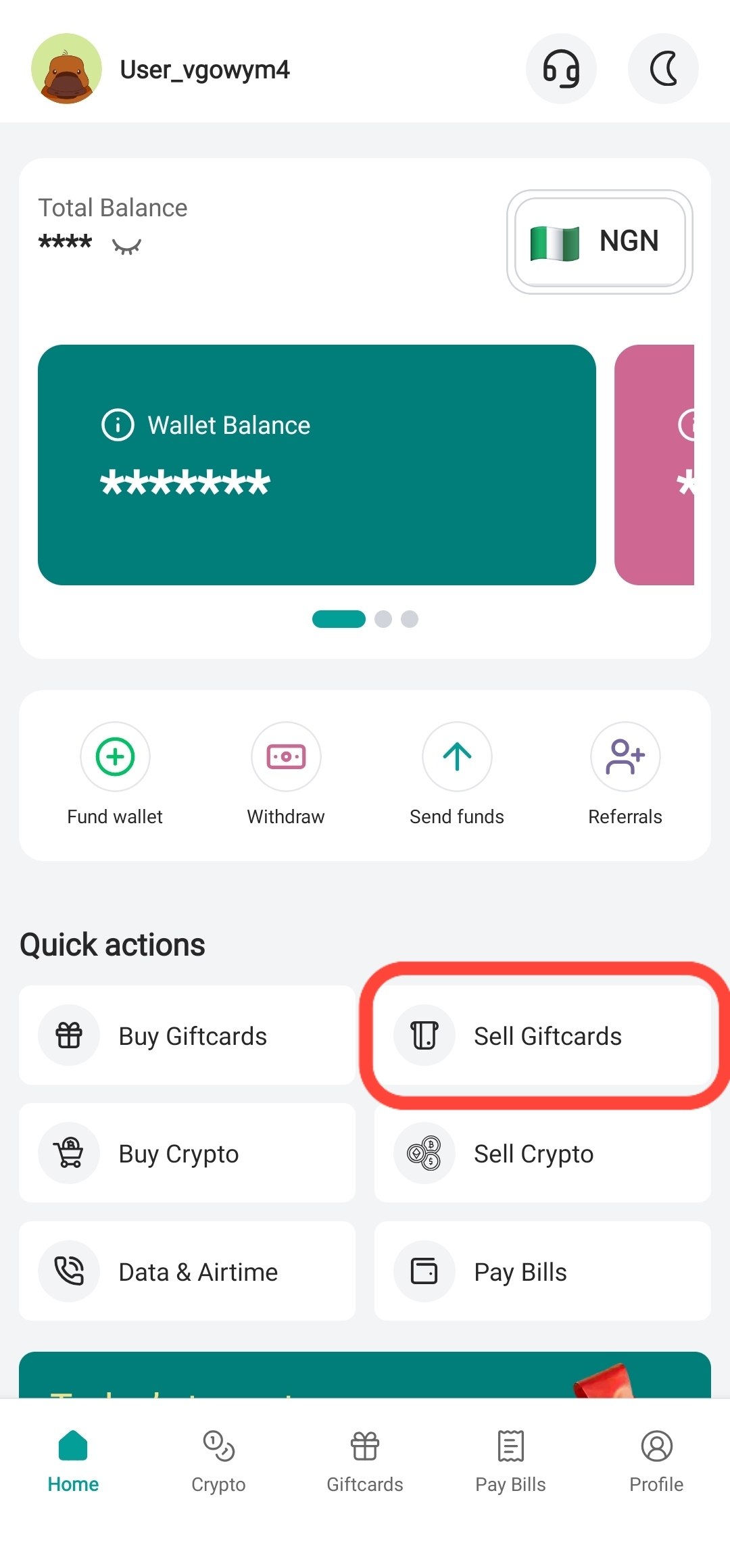
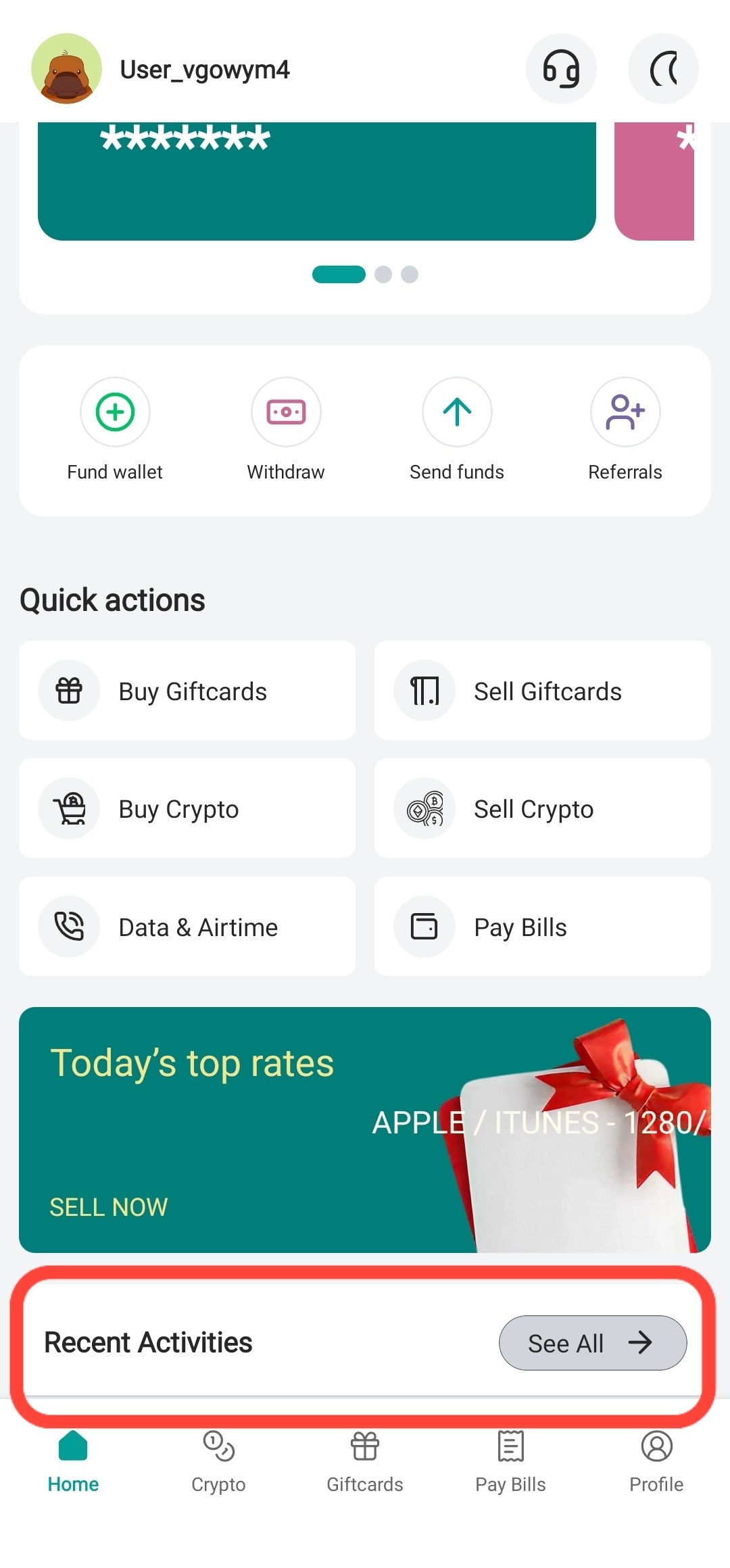
Step 1: Tap "Sell Gift Cards"
From the home screen, tap Sell Gift Cards.
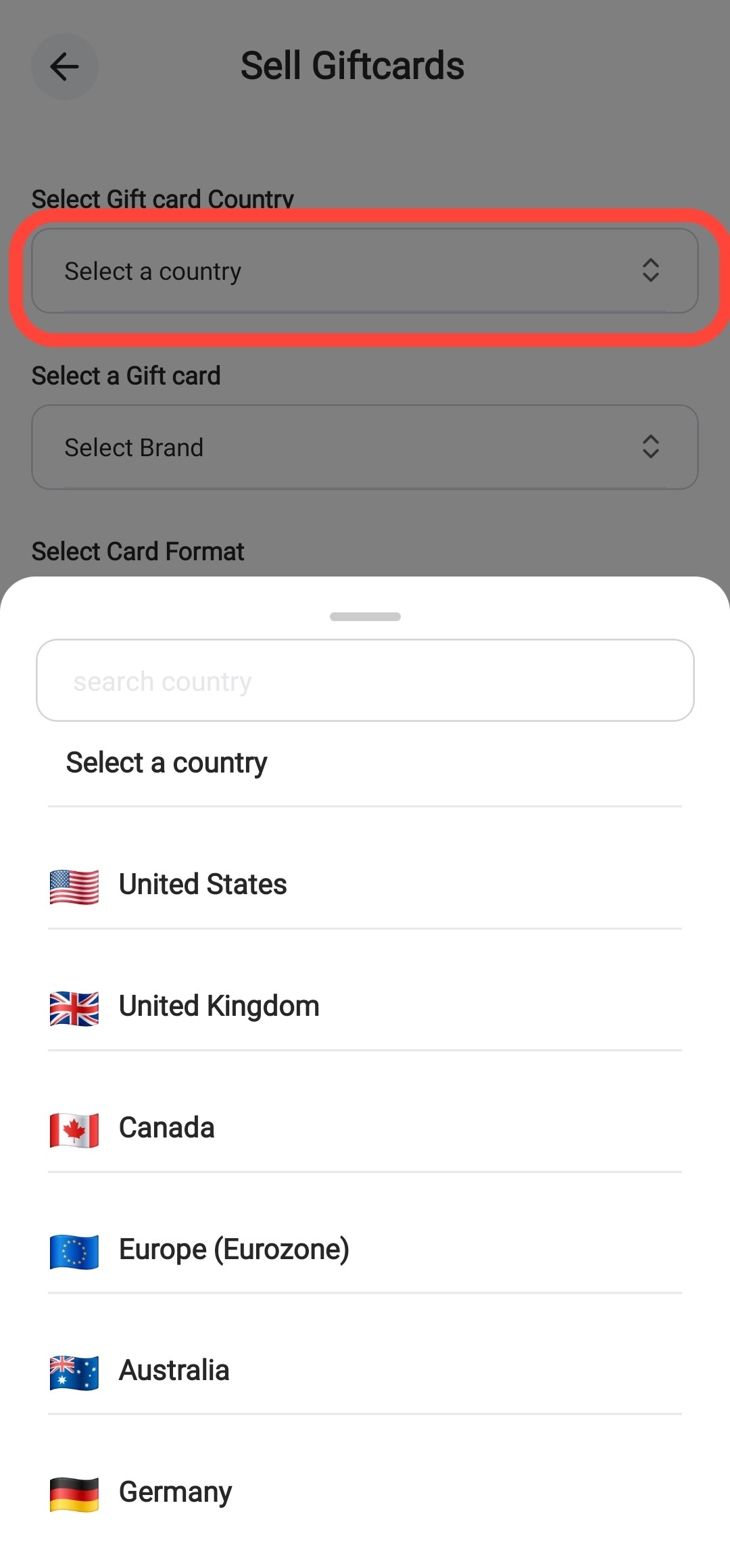
Step 2: Select the Card Country
Choose the country of your gift card.
Example: • United States (US) • United Kingdom (UK) • Canada (CA)
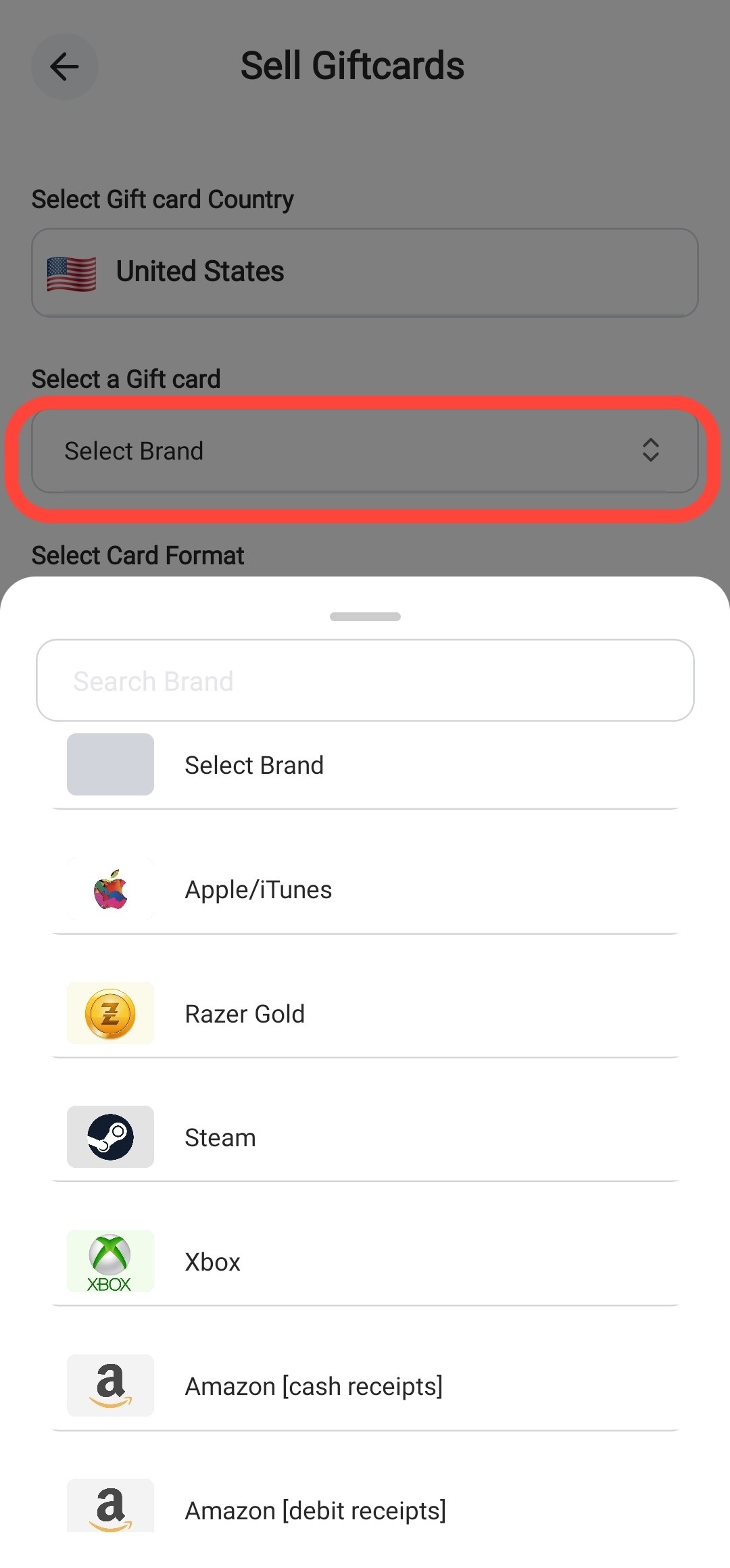
Step 3: Select the Gift Card Brand
Choose the gift card you want to sell.
Example: • Apple • Steam • Razer Gold • Amazon • Xbox
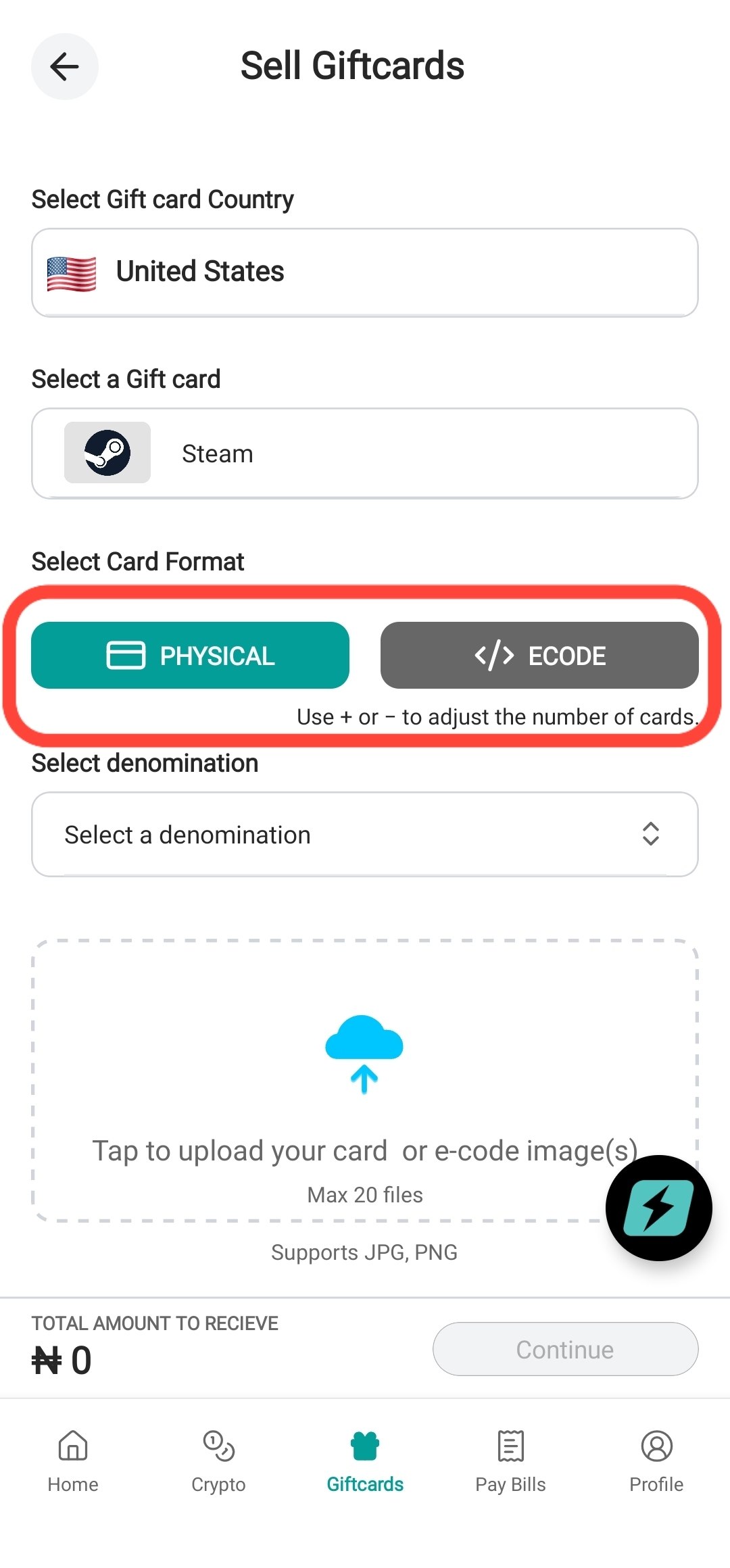
Step 4: Select the Card Format
Choose the correct card format.
Physical Card Select this if you have pictures of the card.
E Code Select this if the gift card was delivered by email or you only have the code.
⚠️ Physical cards and E codes have different rates. Always select the correct format.
For this tutorial, we will select Physical Card.
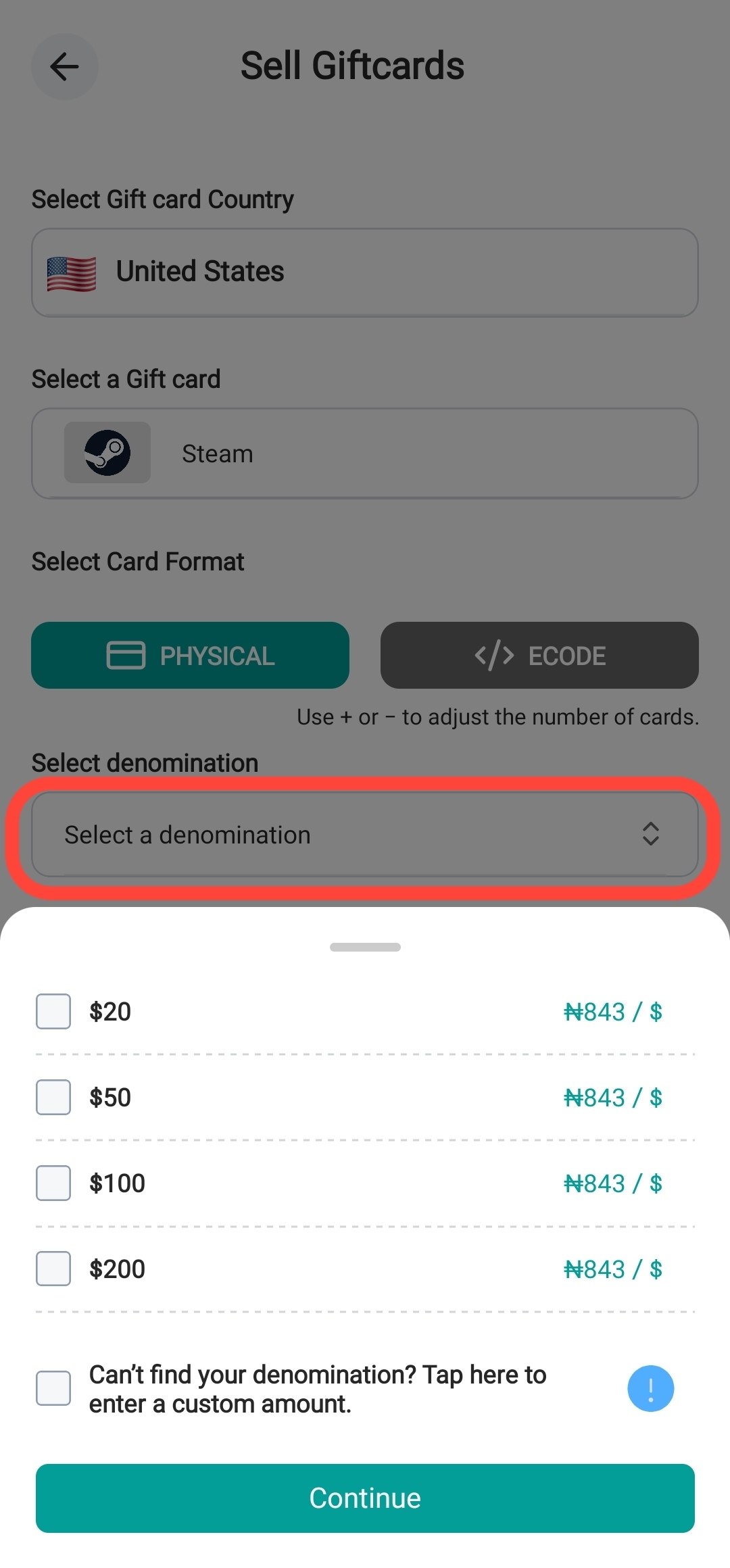
Step 5: Select the Denomination
Choose the denomination of your card.
Example: • $25 • $50 • $100
If your denomination is not listed, tap Custom Denomination.
For this tutorial, we will use one of the available denominations.
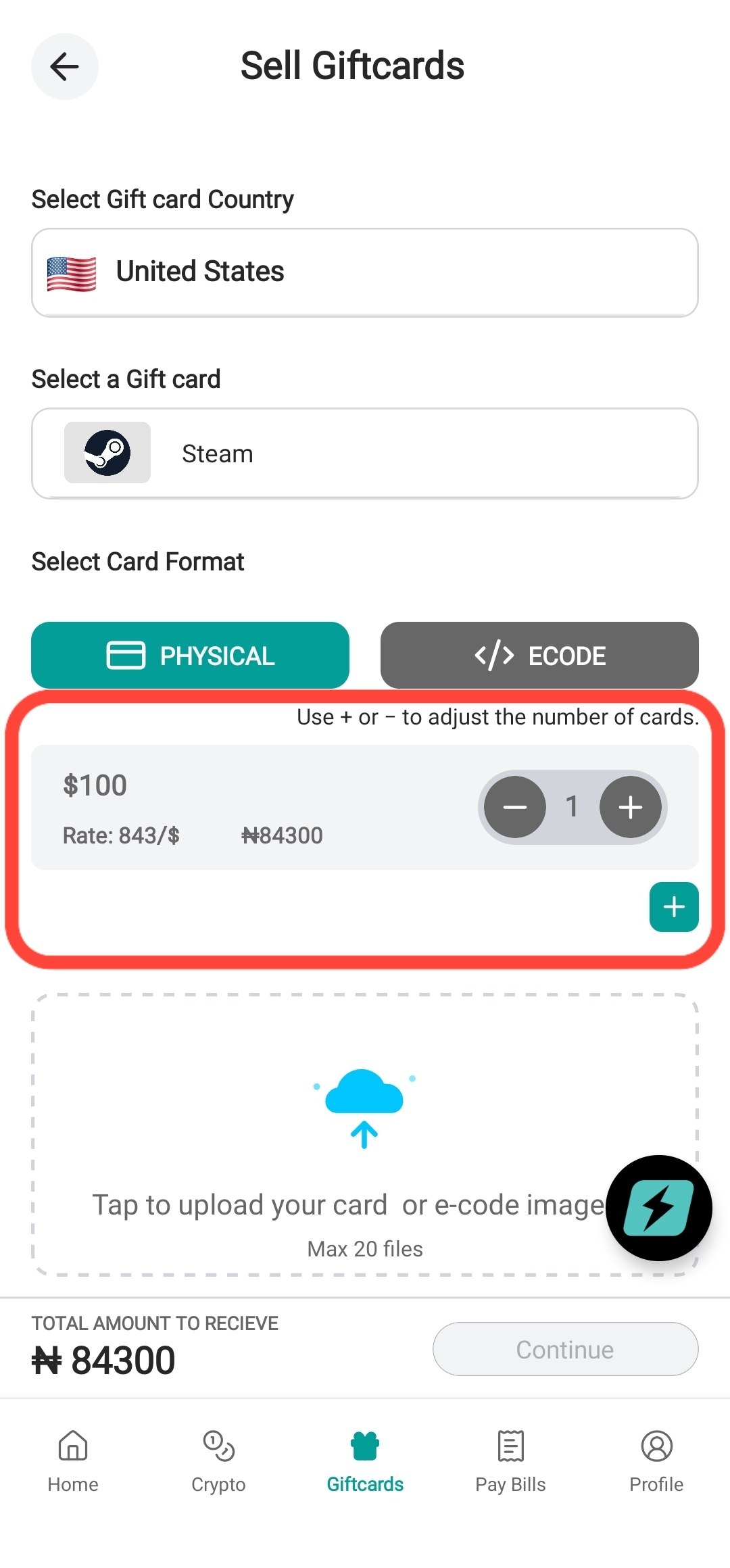
Step 6: Select the Quantity
If you have more than one card of the same denomination, tap the + button to increase the quantity.
Example: If you have five $100 cards, increase the quantity to 5.
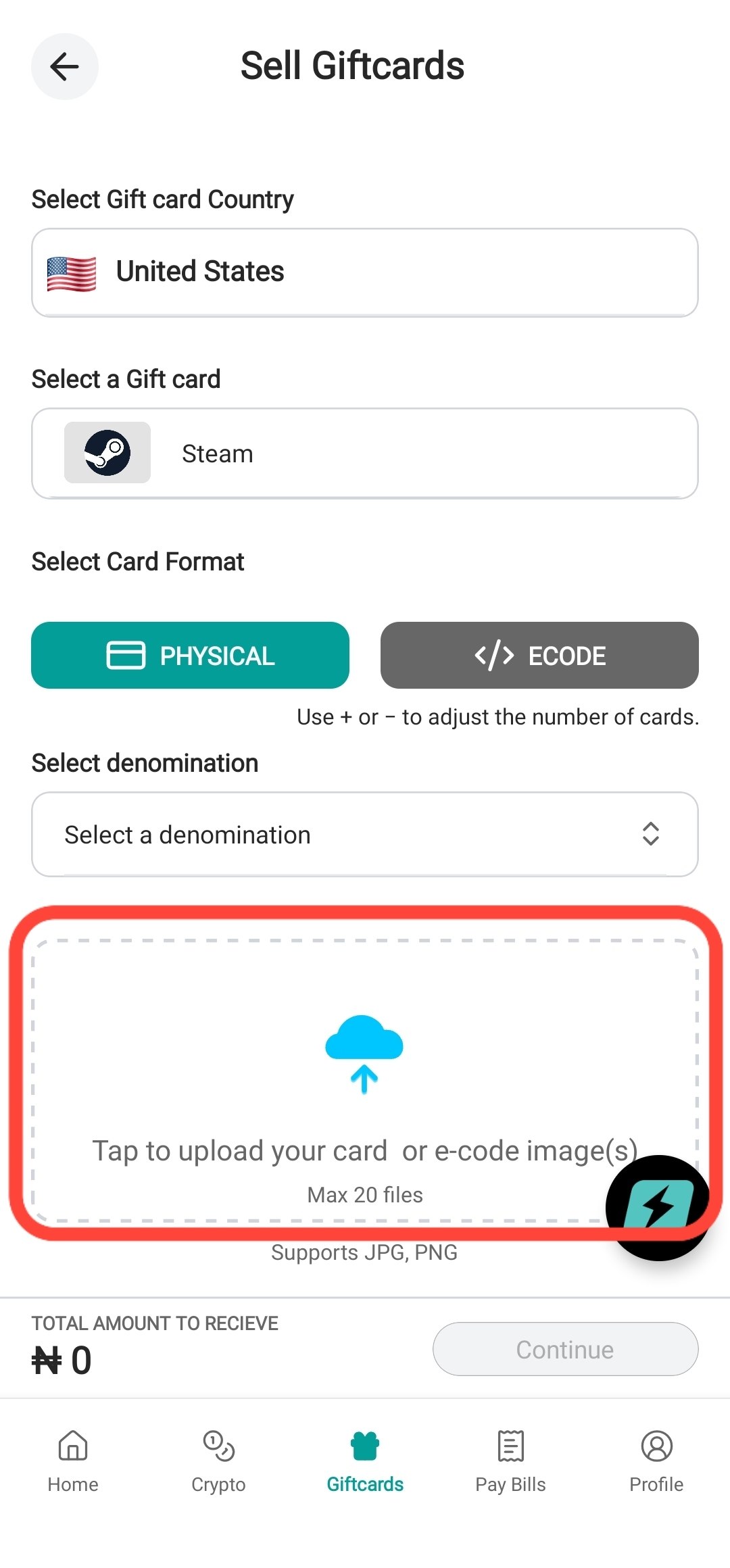
Step 7: Upload the Card Images
Tap Upload and select the card images.
You can upload multiple images at once.
Make sure all images are clear and readable.
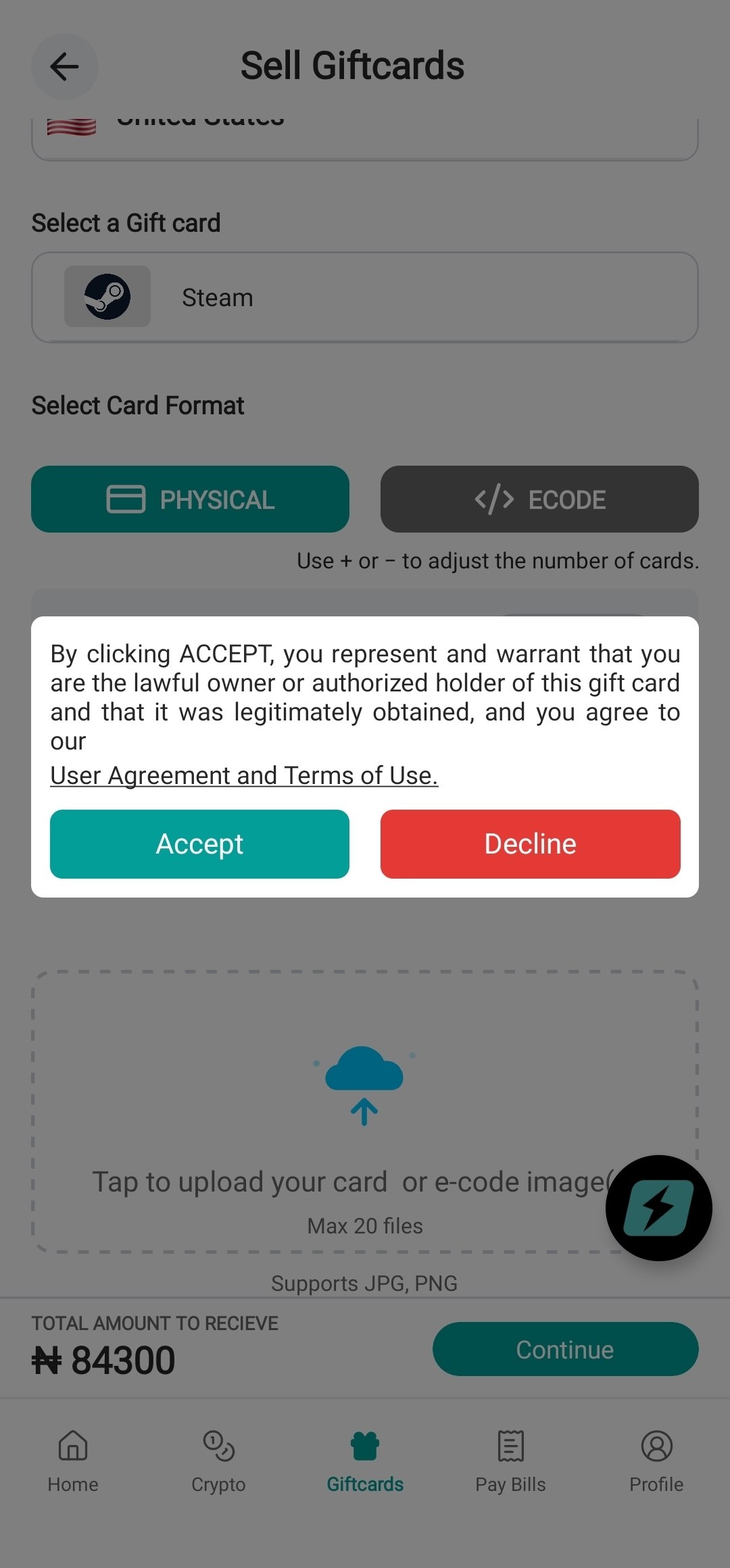
Step 8: Continue and Accept the Terms
Tap Continue.
Read and accept the Terms of Use.
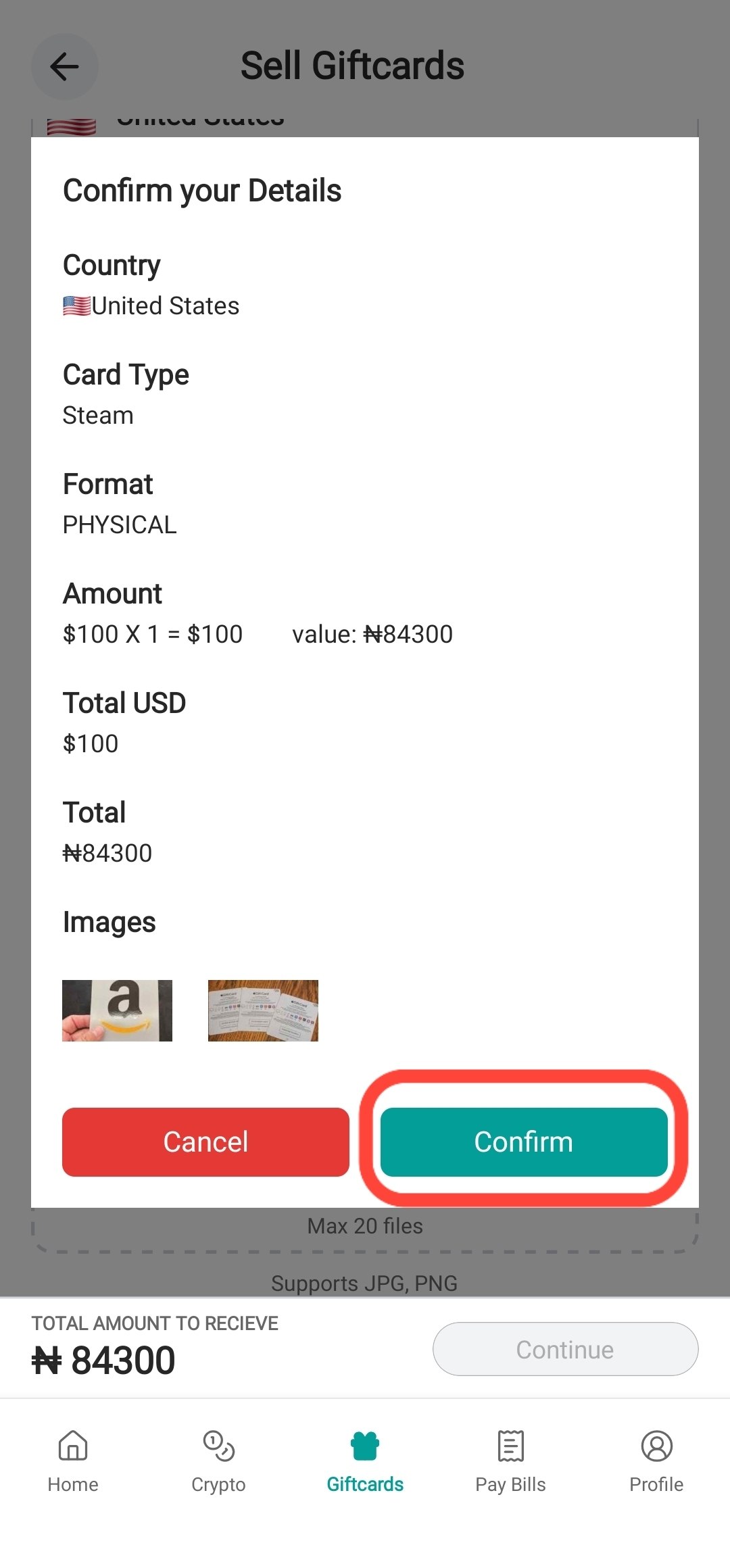
Step 9: Confirm Your Trade
A summary of your transaction will be displayed.
Carefully review all details.
If everything is correct, tap Confirm.
Step 10: Track Your Trade
Your trade will be submitted automatically.
You can monitor the status of your trade through the Notification Center in the app.
Thank you for choosing SwegzApp.
Article contributor
Swegz Team
Contributor to Swegz Blog’s practical guides on safer crypto and gift-card decisions.